MeshCore lets you send text messages over radio waves (no cell service or internet required). A small, affordable device pairs to your phone over Bluetooth and transmits your text messages across the mesh. Repeaters placed on towers, trees, and rooftops relay those messages further, extending the network’s reach across The Woodlands, Texas and beyond.
Decentralized | Off-Grid | Community-Powered
Why MeshCore?
Mesh communities choose MeshCore for its structured, repeater-based infrastructure and intelligent routing that handle congested, large-scale urban or regional networks more efficiently than decentralized flooding systems. The platform uses learned, deterministic routing paths for direct messages and provides clear delivery confirmations.
Check out The Modern Rouge’s video illustrating how MeshCore’s intelligent routing works…
VIDEO: Austin Is Building a Radio Network Cell Companies Can’t Control – The Modern Rouge [ Watch ]
TWTX MeshCore is a community building a reliable communication backbone for an off-grid text messaging network across The Woodlands, North Houston, and Conroe area. Using license-free LoRa radio devices and solar-powered repeaters, people can communicate with others in the mesh with no grid power required.
Help grow this MeshCore community project.
JOIN NOW | Get Involved
Get Involved | Join Now | Register
Join the mesh, become a node operator, help spread the word, or become a volunteer and play a key role in “Ways to Help“. The more we grow, the stronger we become. Reach out at [email protected] with any questions.
Getting Started with MeshCore
HARDWARE: These devices are currently in use throughout TWTX MeshCore area
For the best results and to help the mesh grow, We recommend a combination of two devices; a small pocket-node and an outside device placed as high above the ground as possible.
In this TWTX Project, we refer to the devices as Pocket Nodes or Sky Nodes, for simplicity.
- Pocket Node – Your everyday carry device configured as Companion role that sends signals (hops) to a nearby outdoor sky-node as Repeater role. This pocket node sends signals but it does not repeat signals.
- Sky Node – Your outdoor node device configured as a Repeater role that repeats all signals (hops) with priority given to your pocket nodes and other household companion devices. Examples; Tower Node (best) Treetop Node (better), Rooftop node (good), Backyard node (fence or gutter mount placement are ok, but trees and houses will block the signal. (read Height Is Might at The Mesh Directory).
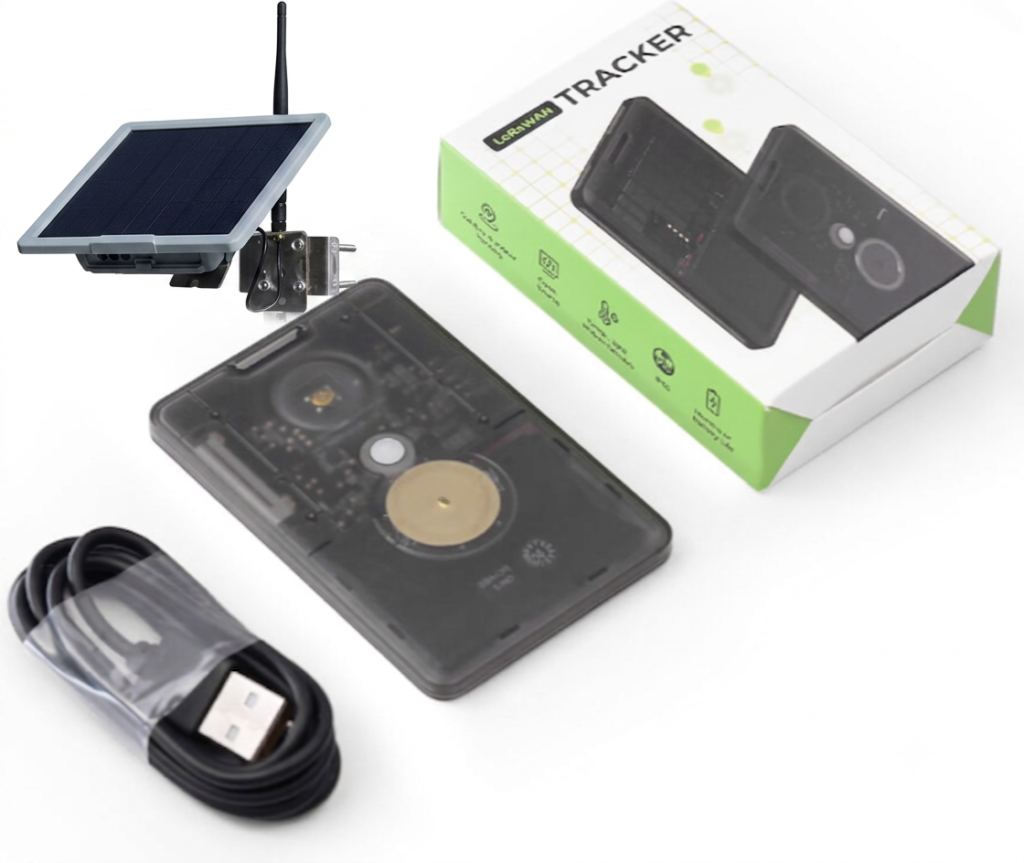
MESHCORE DEVICES – Choose complete turnkey solutions pre-programmed for The Woodlands Mesh or other popular mesh components that you can custom configure.
– TWTX Turnkey Solutions: Preprogrammed, Zero-Config Devices
– Pocket Nodes: Everyday carry devices that send signals repeated by sky nodes
– Sky Nodes: Devices deployed outside to repeat pocket node signals
🛠 Member Zone
TWTXmesh Community Radio & Channel Configurations:
🛠 PRESET ALERT [10-12-26] MeshCore500.org FCC Compliant 500 kHz settings is The Woodlands Mesh MeshCore Infrastructure default with some beacon nodes deployed in the area with old presets to alert legacy users.
TWTXmesh RADIO PROFILES [10/12/26]
| Profile 1 | TWTXmesh500 primary |
|---|---|
| Frequency | 902.250 MHz (MeshCore500.org Community Preferred) |
| Bandwidth | 500 kHz |
| Spreading factor | SF11 |
| Coding rate | 4/5 |
| Prefix | 2-Byte (Required) |
REPEATER CLIset radio 902.250,500,11,5
| Profile 2 | TWTXmesh secondary |
|---|---|
| Frequency | 910.525 MHz |
| Bandwidth | 62.5 kHz |
| Spreading factor | SF7 |
| Coding rate | 4/5 |
| Prefix | 2-Byte (Required) |
REPEATER CLIset radio 910.525,62.5,7,5
General overview of configurations non-specific to The Woodlands Mesh
GENERAL OVERVIEW: Companion Configuration
Official MeshCore.io How to Get Started
To configure a MeshCore Companion node, flash the device via the web flasher, pair it over Bluetooth using the mobile app, and apply your local region presets. [1, 2, 3]
Flashing the Firmware
- Connect your LoRa device (such as a Heltec V3) to a computer using a USB-C cable.
- Open Google Chrome or Microsoft Edge and navigate to the MeshCore Flasher web page.
- Select your specific hardware device and choose Companion Bluetooth as the operational role.
- Check the box to erase the device (especially if switching from Meshtastic or older firmware) and click flash. [1, 4]
For a visual demonstration of the initial flashing process, follow along with this step-by-step tutorial:
Pairing and App Configuration
- Download and open the MeshCore companion app on your phone (Android or iOS).
- Turn on your phone’s Bluetooth and tap the connection icon in the app to scan for nearby MeshCore nodes.
- Select your device matching the ID shown on the node’s screen; if your hardware is screenless, enter the default PIN .
- Open the settings gear icon in the app to input your public profile Name and select your regional Radio Preset (e.g., USA/Canada).
- Send a flood-routed advertisement to broadcast your node onto the local network. [2, 3, 5, 6]
Community Preferred Configuration
The new MeshCore 500 “Community Preferred” configuration is modeled after high-throughput, legally compliant presets. It optimizes airtime by using a wider bandwidth while maintaining long-range connectivity. [1, 2, 3]
The standard node configuration settings for a MeshCore 500 Long Turbo deployment are:LoRa Radio Configuration
| Parameter | Recommended Value | Purpose & Performance Impact |
|---|---|---|
| Frequency | 902.250 MHz | A new preferred base frequency for some North American MeshCore networks. (MeshCore500.org Community Preferred) |
| Bandwidth (BW) | 500.0 kHz | Fulfills FCC 47 CFR § 15.247 digital modulation minimum bandwidth rules while heavily dropping airtime. |
| Spreading Factor (SF) | 11 | Recovers the link budget loss caused by the wide 500 kHz bandwidth, maintaining excellent long-range capabilities. |
| Coding Rate (CR) | 4 (or 5) | CR4 provides max forward error correction (FEC) for weak/noisy signals, though some high-speed setups default to CR5. |
- Path Hash Mode:2-Byte (Required)
- Why: Under your device’s experimental or default path hash size settings, this must be set to 2-Byte (or
set path.hash.mode 1via CLI). This provides the network with enough unique identifier entropy to correctly handle flood routing and prevent transmission loops over a high-capacity 500 kHz infrastructure. [4, 5]
- Why: Under your device’s experimental or default path hash size settings, this must be set to 2-Byte (or
GENERAL OVERVIEW: Repeater Configuration
Configuring a MeshCore repeater involves flashing the firmware via a web flasher, connecting over USB to set basic identification, and applying regional radio presets. [1, 2, 3]
Flashing Firmware
- Open flasher: Use Google Chrome or Microsoft Edge to visit the official MeshCore Flasher tool.
- Connect device: Plug your LoRa board into the computer via a data USB cable and put the board into DFU/bootloader mode if required.
- Select parameters: Choose your specific hardware board model from the dropdown list, select Repeater as the device role, and click install/flash. [3, 4, 5]
Core Configuration
- Connect via USB: Click “configure via USB” in the flasher utility once the flash completes.
- Naming and location: Assign a recognizable name/call sign (e.g., street name or landmark) and enter your decimal latitude and longitude coordinates.
- Passwords: Create a secure admin password for future remote management over the mesh, and leave the guest password blank if you want stats publicly readable. [1, 2, 6]
Radio Settings and Deployment
- Apply region preset: Select the USA/Canada (Recommended) preset to automatically configure correct frequencies and parameters for North America.
- Owner info: Fill in optional contact text such as an email address or Discord handle in case the repeater needs identification.
- Save and reboot: Save the settings (signified by a flashing light on compatible hardware) and send an initial network advert to let nearby companion nodes discover the repeater. [1, 3, 6]
GENERAL OVERVIEW: Regions Configuration
Configuring local regions for MeshCore repeaters requires updating the firmware, setting geographic region tags, enabling packet forwarding, and saving the configuration via a command-line interface or companion app. [1, 2, 3]
Configuring via PC Terminal (CLI)
- Connect your repeater to a computer and open the console via the MeshCore Flasher tool using the correct COM port.
- Assign your local region identifier (such as a country or state code) using the command: (e.g., ).
- Enable traffic forwarding for that specific region by typing: .
- Save the changes permanently to the device memory with the command: . [1, 3, 4]
Configuring via Companion App
- Open your companion app, go to Settings, and tap on Manage Regions.
- Select the menu (three dots) in the top right corner and choose Add Region or set the Default Region Scope.
- Input your local area name agreed upon by your regional community, then tap the checkmark icon to save. [4, 5, 6]
Resources Regions Configuration;
[1] https://www.youtube.com/watch?v=KWQD1bQMvlg
[2] https://gessaman.com/meshcore/regions/rollout/
[3] https://localmesh.co.uk/meshcore-region-configuration/
[4] https://www.regionmesh.com/meshcore-region-configuration/
[5] https://www.meshcore.ch/regions/
[6] https://meshcoreyorkshire.uk/regions
[7] https://bostonme.sh/docs/MeshCore/meshcore-regions/
[8] https://blog.meshcore.io/2026/01/20/region-filtering
[1] https://news.ycombinator.com/item?id=46422221
[2] https://github.com/meshcore-dev/MeshCore/issues/945
[3] https://wnymeshcore.org/why-meshcore
[4] https://www.regionmesh.com/meshcore-performance-tuning/
[5] https://nashme.sh/getting-started/meshcore/
[6] https://www.regionmesh.com/meshcore-performance-tuning/
[0] https://meshmap.me/meshcore500/#preferred-configuration
[1] https://www.youtube.com/watch?v=ems9_XvdPX8
[2] https://www.youtube.com/watch?v=PeThXmxLE4k
[3] https://www.austinmesh.org/join/meshcore-setup/
[4] https://www.youtube.com/watch?v=0GgtOKZ2KJc
[5] https://chicagolandmesh.org/guides/meshcore/getting-started/configure/
[6] https://www.youtube.com/watch?v=hdri8JJZtAw
1] https://www.youtube.com/watch?v=8rEf-Nz6y8Y
[2] https://pugetmesh.org/meshcore/repeater_setup/
[3] https://buffalora.org/2026/03/04/building-the-backbone-setting-up-your-first-meshcore-repeater/
[4] https://www.regionmesh.com/meshcore-repeater-setup/
[5] https://nodakmesh.org/meshcore/setup
[6] https://www.youtube.com/watch?v=axMCA7GTvt0
[7] https://www.regionmesh.com/meshcore-repeater/
[8] https://www.austinmesh.org/join/meshcore-setup/
[9] https://nodakmesh.org/meshcore/repeater-setup
[8] https://www.regionmesh.com
🛠 TWTX Community Support
TWTX Community members can solicit help from fellow mesh community volunteers by sending a help requests with results posted to a members only support forum.